


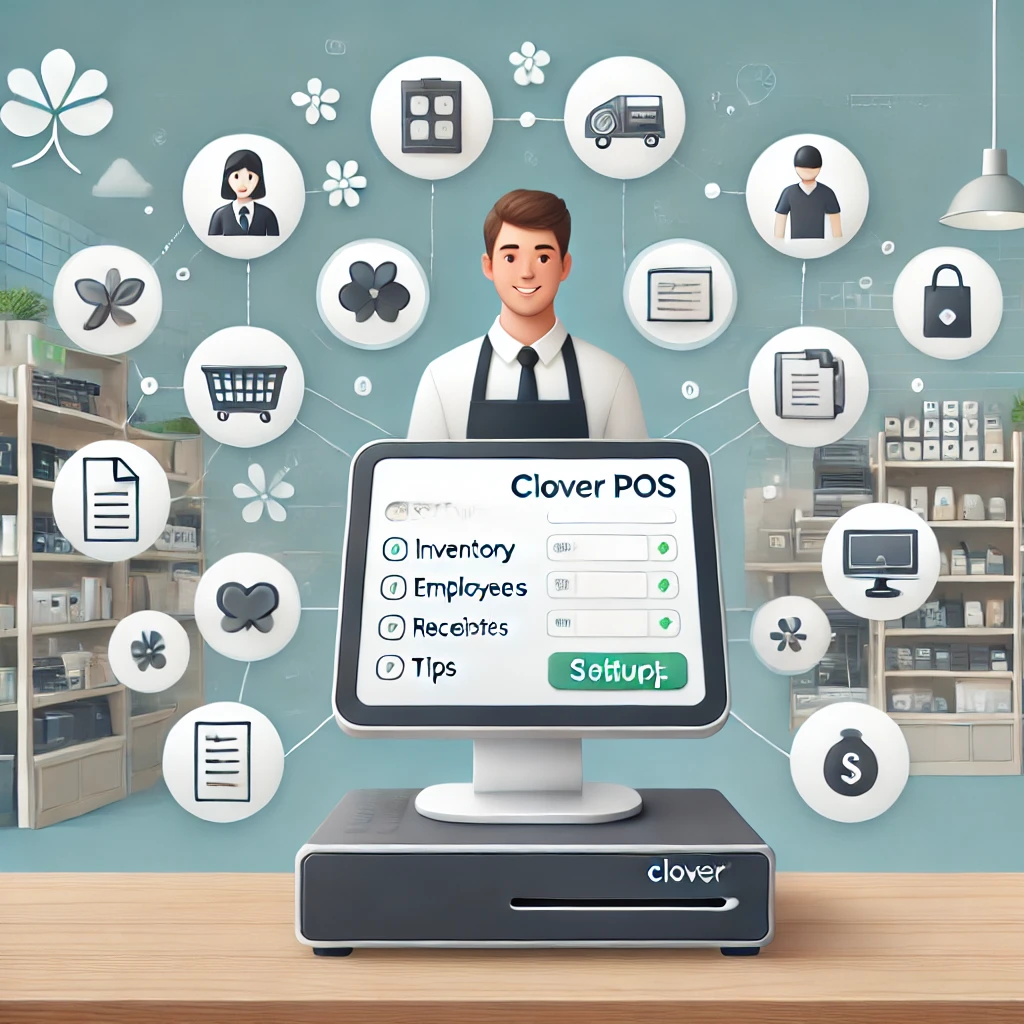
Running an online store alongside a physical business can quickly become challenging when products, orders, and inventory are managed separately. Fortunately, businesses can simplify daily operations by learning how to connect Clover POS to WooCommerce and create a fully synchronized selling experience.
By integrating these two powerful platforms, store owners can automate repetitive tasks, reduce errors, and focus more on growing their business. In this guide, we'll explain why businesses choose this integration, how it works, and the steps required to set it up successfully.
Why Businesses Need Clover and WooCommerce Integration
Many retailers and service providers use Clover POS for in-store transactions while relying on WooCommerce for online sales. Without integration, managing both systems often leads to:
- Manual inventory updates
- Duplicate product entries
- Order management difficulties
- Inconsistent pricing across channels
- Increased risk of stock discrepancies
When you connect Clover POS to WooCommerce, both systems communicate with each other automatically, creating a more efficient and reliable workflow.
Benefits of Connecting Clover POS to WooCommerce
Real-Time Inventory Updates
Inventory synchronization ensures stock levels remain accurate across both online and physical stores. Whenever an item is sold through either platform, quantities are updated automatically.
Simplified Order Management
Online orders can flow directly into your Clover system, allowing staff to manage all sales from one centralized location.
Reduced Human Errors
Manual data entry often causes mistakes. Automation minimizes these issues and improves operational accuracy.
Better Customer Experience
Customers receive accurate product availability information, faster order processing, and a smoother shopping experience.
Increased Productivity
Business owners and employees spend less time on administrative tasks and more time serving customers and expanding the business.
What You Need Before You Start
Before you connect Clover POS to WooCommerce, make sure you have:
- An active Clover POS account
- A WooCommerce-powered website
- Administrator access to both platforms
- A trusted integration plugin or connector
- Updated software versions
Preparing these essentials beforehand will help ensure a smooth setup process.
Step 1: Select a Reliable Integration Tool
The first step is choosing software that supports seamless communication between Clover and WooCommerce.
Look for features such as:
- Product synchronization
- Inventory syncing
- Automatic order transfer
- Customer data synchronization
- Price updates
- Support for WooCommerce's latest features
A quality connector helps maintain stability as your business grows.
Step 2: Install the Integration Plugin
After selecting your preferred solution:
- Log in to your WooCommerce dashboard.
- Navigate to Plugins.
- Upload and activate the connector.
- Follow the setup instructions provided by the software.
Most modern plugins offer easy-to-follow installation wizards.
Step 3: Authorize Your Clover Account
To connect Clover POS to WooCommerce successfully, you'll need to authorize access between both systems.
Typically, this involves:
- Signing into your Clover account.
- Granting API permissions.
- Confirming the connection.
Once connected, data can begin syncing automatically.
Step 4: Configure Synchronization Settings
Every business has unique requirements, so customization is important.
Product Sync
Transfer product information between both platforms.
Inventory Sync
Keep stock quantities updated automatically.
Order Sync
Allow WooCommerce orders to appear within Clover POS.
Customer Sync
Maintain customer information consistently across systems.
Price Synchronization
Ensure product pricing remains uniform both online and offline.
Step 5: Test Everything Before Going Live
Before serving customers, perform several test transactions.
Verify that:
- Orders are transferred correctly.
- Inventory updates immediately.
- Product information matches on both systems.
- Prices remain consistent.
Testing helps identify issues before they affect actual customers.
Common Problems and Their Solutions
Duplicate Products
Use consistent SKU numbers to prevent duplicate entries.
Inventory Mismatches
Enable automatic synchronization instead of manual updates.
Connection Failures
Keep plugins updated and verify API permissions regularly.
Delayed Data Transfer
Choose a professionally maintained integration solution for optimal performance.
Best Practices for Long-Term Success
After you connect Clover POS to WooCommerce, follow these practices to maintain efficiency:
- Update software regularly.
- Back up your store frequently.
- Monitor synchronization logs.
- Maintain consistent product naming.
- Test changes before implementing them on your live website.
These habits can help prevent disruptions and ensure smooth operations.
Which Businesses Benefit the Most?
Businesses that commonly benefit from this integration include:
- Retail stores
- Restaurants
- Multi-location businesses
- Service-based companies
- Growing eCommerce brands
By combining online and in-store sales into one ecosystem, companies can scale more efficiently and provide a better experience for customers.
Final Thoughts
Learning how to connect Clover POS to WooCommerce is one of the smartest ways to automate business operations. With synchronized inventory, streamlined order management, and reduced manual work, businesses can operate more efficiently while delivering a superior customer experience.
As omnichannel commerce continues to grow, integrating Clover POS with WooCommerce gives businesses the tools they need to stay organized, save time, and scale with confidence.